


'%3e%3cpath%20d='M10%2020C15.5228%2020%2020%2015.5228%2020%2010C20%204.47715%2015.5228%200%2010%200C4.47715%200%200%204.47715%200%2010C0%2015.5228%204.47715%2020%2010%2020Z'%20fill='%23F0F0F0'/%3e%3cpath%20d='M19.378%2013.4785C19.78%2012.3951%2020%2011.2234%2020%2010.0002C20%208.77701%2019.78%207.60529%2019.378%206.52197H0.621992C0.220039%207.60529%200%208.77701%200%2010.0002C0%2011.2234%200.220039%2012.3951%200.621992%2013.4785L10%2014.348L19.378%2013.4785Z'%20fill='%230052B4'/%3e%3cpath%20d='M9.9991%2019.9998C14.2987%2019.9998%2017.9642%2017.286%2019.3771%2013.478H0.621094C2.03402%2017.286%205.69945%2019.9998%209.9991%2019.9998Z'%20fill='%23D80027'/%3e%3c/g%3e%3cdefs%3e%3cclipPath%20id='clip0_586_4336'%3e%3crect%20width='20'%20height='20'%20fill='white'/%3e%3c/clipPath%3e%3c/defs%3e%3c/svg%3e)
'%3e%3cpath%20d='M10%2020C15.5228%2020%2020%2015.5228%2020%2010C20%204.47715%2015.5228%200%2010%200C4.47715%200%200%204.47715%200%2010C0%2015.5228%204.47715%2020%2010%2020Z'%20fill='%23F0F0F0'/%3e%3cpath%20d='M9.56445%209.99982H19.9992C19.9992%209.09725%2019.8789%208.22287%2019.6547%207.39111H9.56445V9.99982Z'%20fill='%23D80027'/%3e%3cpath%20d='M9.56445%204.78254H18.5315C17.9193%203.78363%2017.1366%202.9007%2016.2241%202.17383H9.56445V4.78254Z'%20fill='%23D80027'/%3e%3cpath%20d='M9.99828%2020.0001C12.3518%2020.0001%2014.5149%2019.1866%2016.2231%2017.8262H3.77344C5.48164%2019.1866%207.6448%2020.0001%209.99828%2020.0001Z'%20fill='%23D80027'/%3e%3cpath%20d='M1.46699%2015.2171H18.5315C19.023%2014.4152%2019.4041%2013.5386%2019.6548%2012.6084H0.34375C0.594414%2013.5386%200.975547%2014.4152%201.46699%2015.2171Z'%20fill='%23D80027'/%3e%3cpath%20d='M4.63219%201.56164H5.54348L4.69582%202.17746L5.01961%203.17391L4.17199%202.55809L3.32437%203.17391L3.60406%202.31309C2.85773%202.93477%202.20359%203.66313%201.66453%204.47469H1.95652L1.41695%204.86668C1.33289%205.00691%201.25227%205.14937%201.175%205.29395L1.43266%206.08695L0.951953%205.7377C0.832461%205.99086%200.723164%206.24973%200.624922%206.51398L0.908789%207.38773H1.95652L1.10887%208.00356L1.43266%209L0.585039%208.38418L0.0773047%208.75309C0.0264844%209.1616%200%209.57769%200%2010H10C10%204.47719%2010%203.82609%2010%200C8.02453%200%206.18301%200.573047%204.63219%201.56164ZM5.01961%209L4.17199%208.38418L3.32437%209L3.64816%208.00356L2.80051%207.38773H3.84824L4.17199%206.39129L4.49574%207.38773H5.54348L4.69582%208.00356L5.01961%209ZM4.69582%205.09051L5.01961%206.08695L4.17199%205.47113L3.32437%206.08695L3.64816%205.09051L2.80051%204.47469H3.84824L4.17199%203.47824L4.49574%204.47469H5.54348L4.69582%205.09051ZM8.60656%209L7.75895%208.38418L6.91133%209L7.23512%208.00356L6.38746%207.38773H7.4352L7.75895%206.39129L8.0827%207.38773H9.13043L8.28277%208.00356L8.60656%209ZM8.28277%205.09051L8.60656%206.08695L7.75895%205.47113L6.91133%206.08695L7.23512%205.09051L6.38746%204.47469H7.4352L7.75895%203.47824L8.0827%204.47469H9.13043L8.28277%205.09051ZM8.28277%202.17746L8.60656%203.17391L7.75895%202.55809L6.91133%203.17391L7.23512%202.17746L6.38746%201.56164H7.4352L7.75895%200.565195L8.0827%201.56164H9.13043L8.28277%202.17746Z'%20fill='%230052B4'/%3e%3c/g%3e%3cdefs%3e%3cclipPath%20id='clip0_1008_13251'%3e%3crect%20width='20'%20height='20'%20fill='white'/%3e%3c/clipPath%3e%3c/defs%3e%3c/svg%3e)
'%3e%3cpath%20d='M10%2020C15.5228%2020%2020%2015.5228%2020%2010C20%204.47715%2015.5228%200%2010%200C4.47715%200%200%204.47715%200%2010C0%2015.5228%204.47715%2020%2010%2020Z'%20fill='%23F0F0F0'/%3e%3cpath%20d='M0.34375%2012.6089C1.26711%2016.0348%203.96465%2018.7324%207.39059%2019.6557V12.6089H0.34375Z'%20fill='%23D80027'/%3e%3cpath%20d='M7.39055%200.344727C3.96465%201.26805%201.26707%203.96562%200.34375%207.39152H7.39059V0.344727H7.39055Z'%20fill='%230052B4'/%3e%3cpath%20d='M19.6562%207.39152C18.7329%203.96562%2016.0353%201.26805%2012.6094%200.344727V7.39156H19.6562V7.39152Z'%20fill='%23D80027'/%3e%3cpath%20d='M12.6094%2019.6557C16.0353%2018.7324%2018.7329%2016.0348%2019.6562%2012.6089H12.6094V19.6557Z'%20fill='%230052B4'/%3e%3cpath%20d='M12.608%209.99982C12.608%2011.4406%2011.4401%2012.6085%209.99934%2012.6085C8.55859%2012.6085%207.39062%2011.4406%207.39062%209.99982C7.39062%208.55904%209.99934%207.39111%209.99934%207.39111C9.99934%207.39111%2012.608%208.55904%2012.608%209.99982Z'%20fill='%23496E2D'/%3e%3cpath%20d='M7.39062%209.99982C7.39062%208.55904%208.55859%207.39111%209.99934%207.39111C11.4401%207.39111%2012.608%208.55904%2012.608%209.99982'%20fill='%230052B4'/%3e%3cpath%20d='M8.5332%208.6958V10.3262C8.5332%2011.1367%209.19016%2011.7936%2010.0006%2011.7936C10.811%2011.7936%2011.468%2011.1367%2011.468%2010.3262V8.6958H8.5332Z'%20fill='%23D80027'/%3e%3c/g%3e%3cdefs%3e%3cclipPath%20id='clip0_1008_13324'%3e%3crect%20width='20'%20height='20'%20fill='white'/%3e%3c/clipPath%3e%3c/defs%3e%3c/svg%3e)


How to send a message from Business Processes
Correspondence with customers can be automated using Business Processes. For example, make a mailing to clients through the WABA channel, send a message if a deal or lead has moved from stage to stage, and more.
How to send a message
For example, let's add a Business Process that will send a message to WhatsApp when a transaction is created:
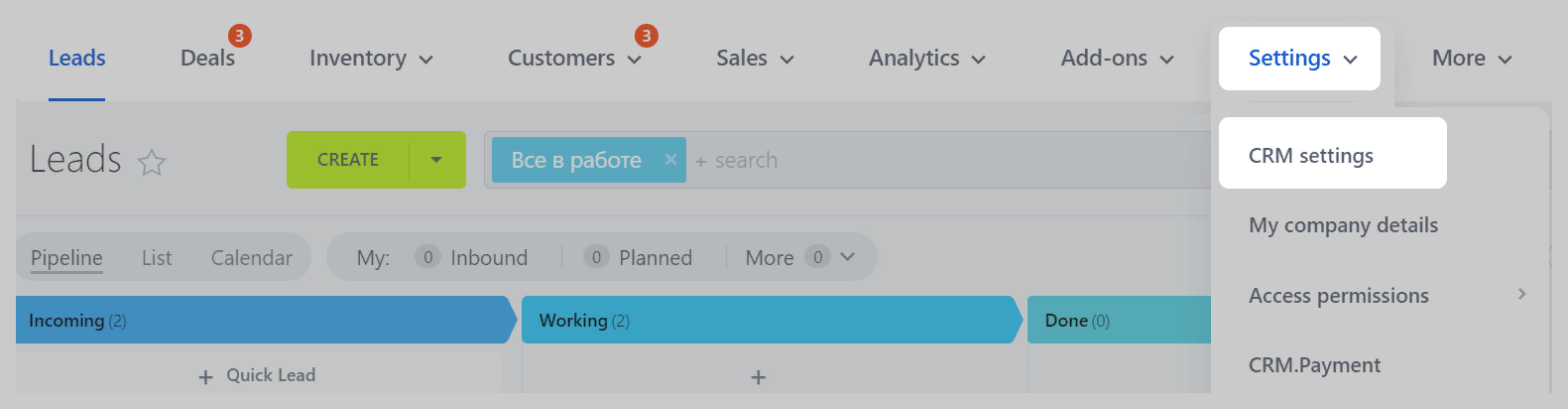
1. Go to the "CRM" section on the left panel of Bitrix24 → the "Settings" tab on the top panel → the "CRM Settings" item.
2. Click "Automation" → "Business Processes" on the left.
3. Select the entity with which the business process will work: lead, contact, deal, company, etc.
In our example, this is "Deal" → "+ Add Template".
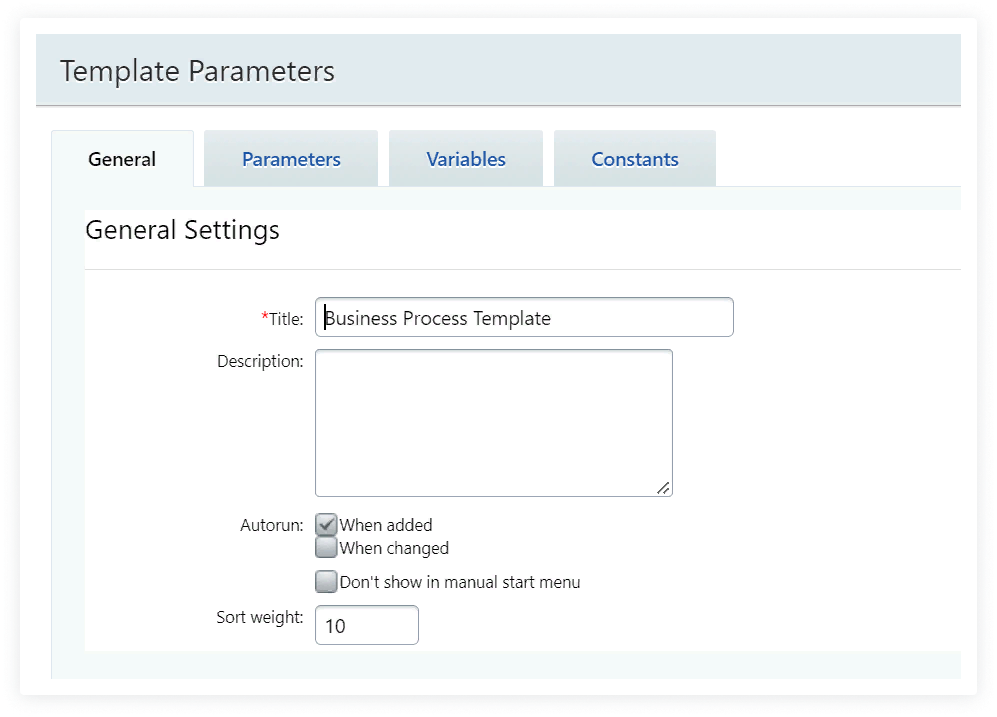
4. Enter the name of the template → leave a check mark in the item "When added" → "Save".
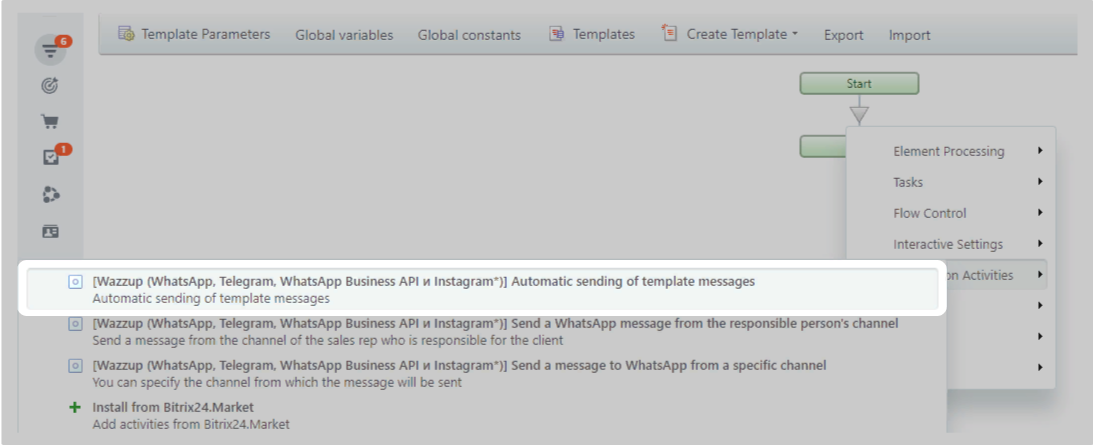
5. Click on the triangle between "Start" and "End" → "Application Activities" → the gear next to "Automatic sending of template messages"
6. The activity will open.
If you have channels in Open Channels, there will be a "Display message in Open Channel" setting at the beginning. Leave a checkmark if you need to save a message in the Open Channel that leaves through the activity.
Messages sent from Wazzup chats or Wazzup activity are displayed in Open Channels as incoming. If you decide to pull outgoing activities from the activity to Open Channels, you will receive notifications about the messages that you sent to the client.
For example, the message was sent to 15 clients → the Open Channel will display 15 dialogues in which the messages went → you will receive 15 notifications about new messages.
7. Choose how you want to write to clients:
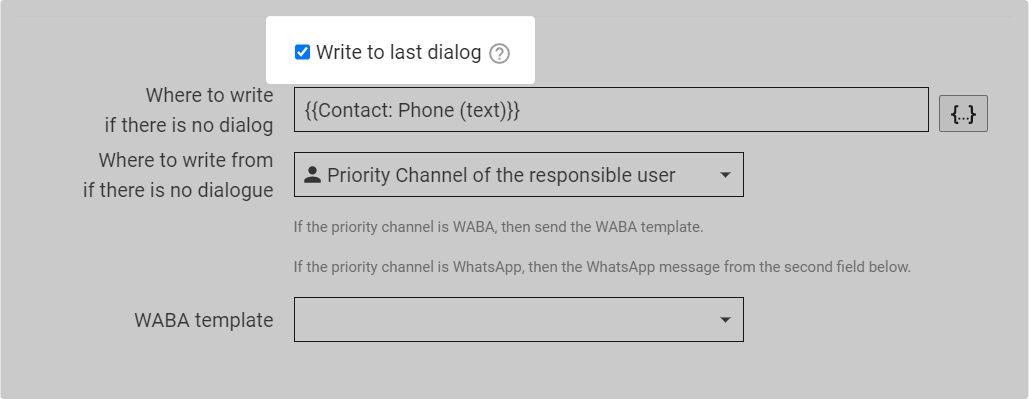
Write to last dialog. If you select "Write to last dialog", the message will go to the dialogue that had the last incoming or outgoing message, including automatic. It will go to the same number and from the same channel.
If there is no last dialogue, then the message will be sent:
- from the channel that was selected in the "Where to write from if there are no dialog" section,
- to the number or username from the Bitrix24 field that was selected in the "Where to write if there are no dialog".
Write from a specific channel to a number or username from a specific Bitrix24 field:
- in the "Where to write from" field, select the channel from which messages should be sent;
- in "Where to write" select the Bitrix24 field from which you need to take contact information to send a message.
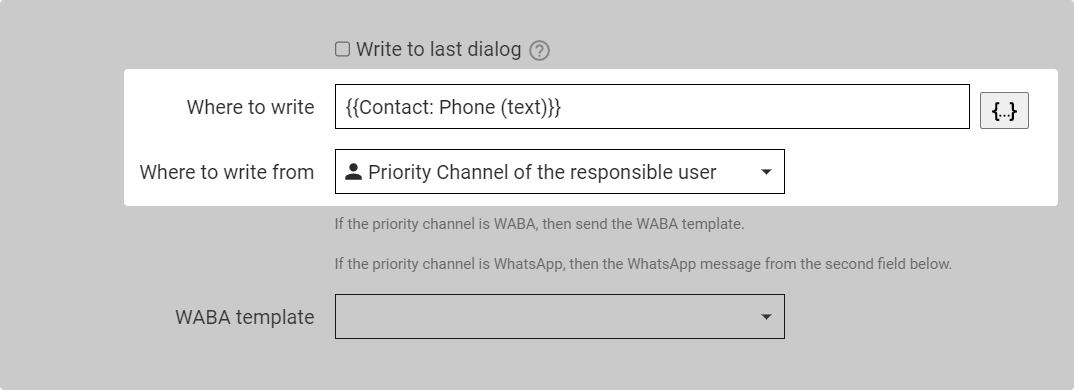
You can add multiple CRM fields to "Where to write" to ensure that if the first field is empty, the message will be sent to the number or username in the next field.
If you add multiple variables, do not separate them with a comma — otherwise, the message will not be sent. Example of how to correctly specify variables:
{{Contact: Phone (text)}} {{Contact: TelegramUsername_WZ}}
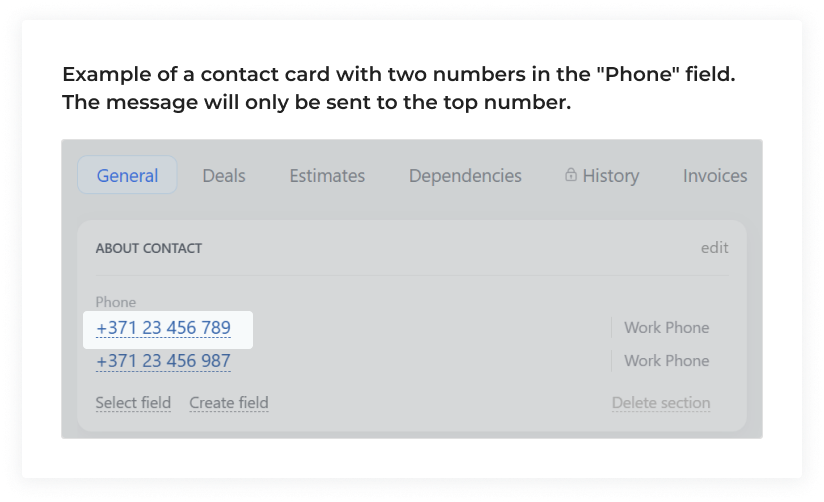
The message is sent using the contact information from a single field. If the field contains multiple numbers, the message will only be sent to the first one.
- In the activity settings, clear the "Run as" field,
- Click on the three dots to the right of the field → open the "Element Fields" list → select the "Responsible" variable
8. Write a message that will go to the customers.
From a WhatsApp, Telegram or Viber channel, you can send a text message with an attached image, video, document.
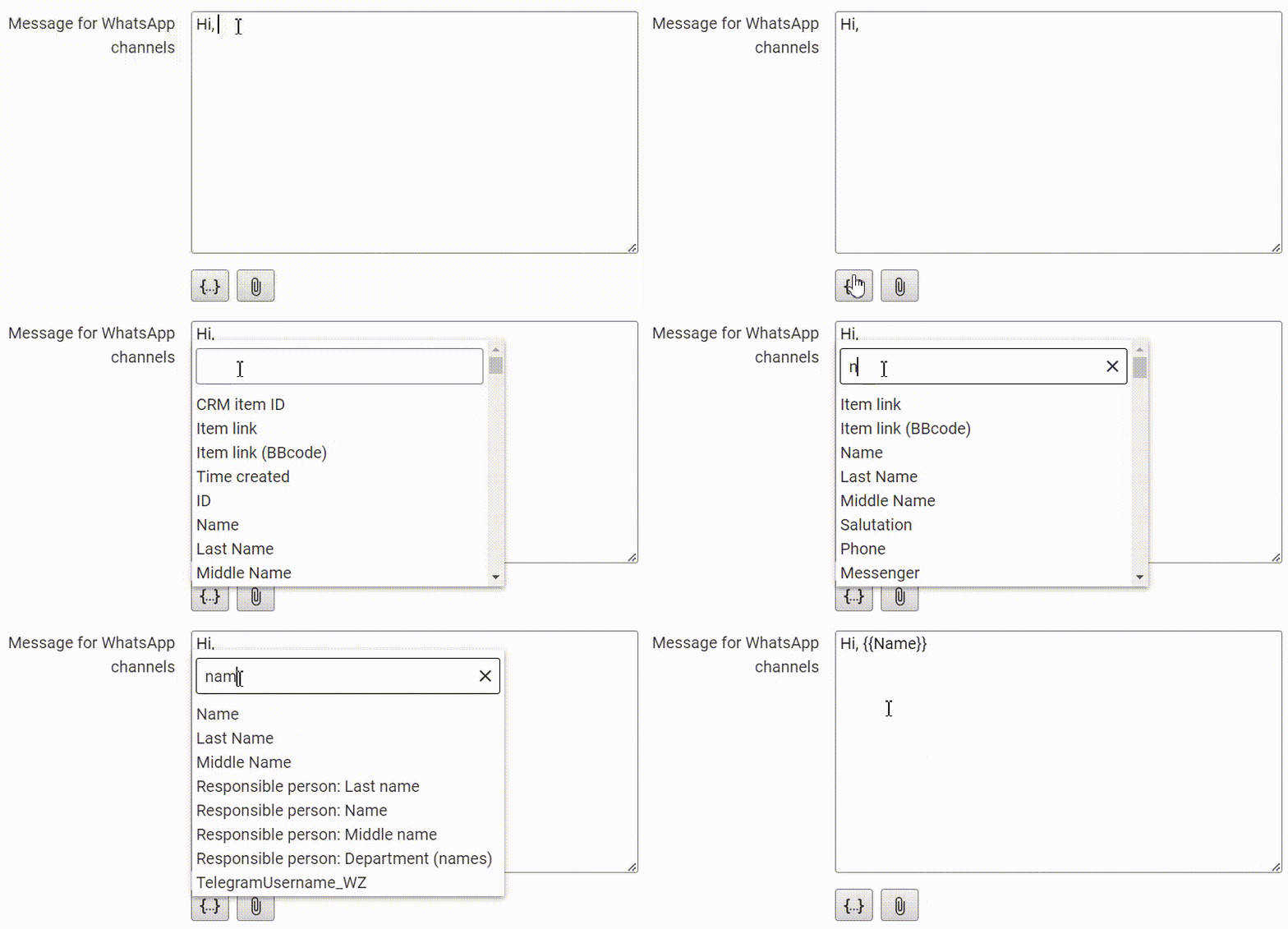
You can add a variable from CRM to the message. For example, customer name or order number. To do this, click on the {...} button below the message field.
To find an exact variable without manual scrolling through the entire list, you can use the search. To do this, start typing in the upper empty line the name of the variable or CRM element, for example, "Name".
From a WABA channel, you can only send a template. The list will show all the templates that are available in your personal account.
Fill in the variables. This can be done manually, or you can substitute data from CRM. To automatically pull data from Bitrix into the message, click on the arrow next to the required variable → select the field from which you want to take information.
Attach a file if you have a template with media.
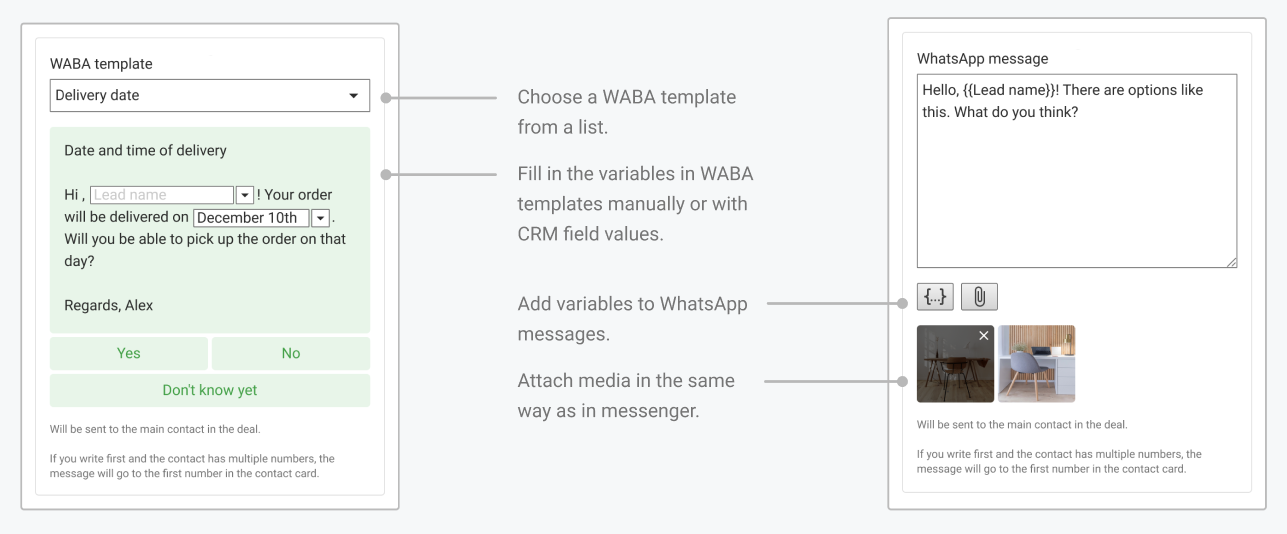
You can have both the message entry field for WhatsApp, Telegram or Viber channels and the list of WABA templates displayed. This happens if you have both types of channels, and want to send a message from the priority channel of the responsible one or to the last dialogue.
Fill in both fields. If the message will go from the WhatsApp, Telegram or Viber channel, Salesbot will recognize that you need to send the text from the "Message for WhatsApp, Telegram or Viber channel" field. If from the WABA channel — the bot will send the selected template. The messages will not go from two channels at once — only one.
9. Once you've entered the messages, click Save → the Business Process editor will open. There you need to click "Save" again.
The business process is ready. When a new deal is created, the client will receive a message.