


'%3e%3cpath%20d='M10%2020C15.5228%2020%2020%2015.5228%2020%2010C20%204.47715%2015.5228%200%2010%200C4.47715%200%200%204.47715%200%2010C0%2015.5228%204.47715%2020%2010%2020Z'%20fill='%23F0F0F0'/%3e%3cpath%20d='M19.378%2013.4785C19.78%2012.3951%2020%2011.2234%2020%2010.0002C20%208.77701%2019.78%207.60529%2019.378%206.52197H0.621992C0.220039%207.60529%200%208.77701%200%2010.0002C0%2011.2234%200.220039%2012.3951%200.621992%2013.4785L10%2014.348L19.378%2013.4785Z'%20fill='%230052B4'/%3e%3cpath%20d='M9.9991%2019.9998C14.2987%2019.9998%2017.9642%2017.286%2019.3771%2013.478H0.621094C2.03402%2017.286%205.69945%2019.9998%209.9991%2019.9998Z'%20fill='%23D80027'/%3e%3c/g%3e%3cdefs%3e%3cclipPath%20id='clip0_586_4336'%3e%3crect%20width='20'%20height='20'%20fill='white'/%3e%3c/clipPath%3e%3c/defs%3e%3c/svg%3e)
'%3e%3cpath%20d='M10%2020C15.5228%2020%2020%2015.5228%2020%2010C20%204.47715%2015.5228%200%2010%200C4.47715%200%200%204.47715%200%2010C0%2015.5228%204.47715%2020%2010%2020Z'%20fill='%23F0F0F0'/%3e%3cpath%20d='M9.56445%209.99982H19.9992C19.9992%209.09725%2019.8789%208.22287%2019.6547%207.39111H9.56445V9.99982Z'%20fill='%23D80027'/%3e%3cpath%20d='M9.56445%204.78254H18.5315C17.9193%203.78363%2017.1366%202.9007%2016.2241%202.17383H9.56445V4.78254Z'%20fill='%23D80027'/%3e%3cpath%20d='M9.99828%2020.0001C12.3518%2020.0001%2014.5149%2019.1866%2016.2231%2017.8262H3.77344C5.48164%2019.1866%207.6448%2020.0001%209.99828%2020.0001Z'%20fill='%23D80027'/%3e%3cpath%20d='M1.46699%2015.2171H18.5315C19.023%2014.4152%2019.4041%2013.5386%2019.6548%2012.6084H0.34375C0.594414%2013.5386%200.975547%2014.4152%201.46699%2015.2171Z'%20fill='%23D80027'/%3e%3cpath%20d='M4.63219%201.56164H5.54348L4.69582%202.17746L5.01961%203.17391L4.17199%202.55809L3.32437%203.17391L3.60406%202.31309C2.85773%202.93477%202.20359%203.66313%201.66453%204.47469H1.95652L1.41695%204.86668C1.33289%205.00691%201.25227%205.14937%201.175%205.29395L1.43266%206.08695L0.951953%205.7377C0.832461%205.99086%200.723164%206.24973%200.624922%206.51398L0.908789%207.38773H1.95652L1.10887%208.00356L1.43266%209L0.585039%208.38418L0.0773047%208.75309C0.0264844%209.1616%200%209.57769%200%2010H10C10%204.47719%2010%203.82609%2010%200C8.02453%200%206.18301%200.573047%204.63219%201.56164ZM5.01961%209L4.17199%208.38418L3.32437%209L3.64816%208.00356L2.80051%207.38773H3.84824L4.17199%206.39129L4.49574%207.38773H5.54348L4.69582%208.00356L5.01961%209ZM4.69582%205.09051L5.01961%206.08695L4.17199%205.47113L3.32437%206.08695L3.64816%205.09051L2.80051%204.47469H3.84824L4.17199%203.47824L4.49574%204.47469H5.54348L4.69582%205.09051ZM8.60656%209L7.75895%208.38418L6.91133%209L7.23512%208.00356L6.38746%207.38773H7.4352L7.75895%206.39129L8.0827%207.38773H9.13043L8.28277%208.00356L8.60656%209ZM8.28277%205.09051L8.60656%206.08695L7.75895%205.47113L6.91133%206.08695L7.23512%205.09051L6.38746%204.47469H7.4352L7.75895%203.47824L8.0827%204.47469H9.13043L8.28277%205.09051ZM8.28277%202.17746L8.60656%203.17391L7.75895%202.55809L6.91133%203.17391L7.23512%202.17746L6.38746%201.56164H7.4352L7.75895%200.565195L8.0827%201.56164H9.13043L8.28277%202.17746Z'%20fill='%230052B4'/%3e%3c/g%3e%3cdefs%3e%3cclipPath%20id='clip0_1008_13251'%3e%3crect%20width='20'%20height='20'%20fill='white'/%3e%3c/clipPath%3e%3c/defs%3e%3c/svg%3e)
'%3e%3cpath%20d='M10%2020C15.5228%2020%2020%2015.5228%2020%2010C20%204.47715%2015.5228%200%2010%200C4.47715%200%200%204.47715%200%2010C0%2015.5228%204.47715%2020%2010%2020Z'%20fill='%23F0F0F0'/%3e%3cpath%20d='M0.34375%2012.6089C1.26711%2016.0348%203.96465%2018.7324%207.39059%2019.6557V12.6089H0.34375Z'%20fill='%23D80027'/%3e%3cpath%20d='M7.39055%200.344727C3.96465%201.26805%201.26707%203.96562%200.34375%207.39152H7.39059V0.344727H7.39055Z'%20fill='%230052B4'/%3e%3cpath%20d='M19.6562%207.39152C18.7329%203.96562%2016.0353%201.26805%2012.6094%200.344727V7.39156H19.6562V7.39152Z'%20fill='%23D80027'/%3e%3cpath%20d='M12.6094%2019.6557C16.0353%2018.7324%2018.7329%2016.0348%2019.6562%2012.6089H12.6094V19.6557Z'%20fill='%230052B4'/%3e%3cpath%20d='M12.608%209.99982C12.608%2011.4406%2011.4401%2012.6085%209.99934%2012.6085C8.55859%2012.6085%207.39062%2011.4406%207.39062%209.99982C7.39062%208.55904%209.99934%207.39111%209.99934%207.39111C9.99934%207.39111%2012.608%208.55904%2012.608%209.99982Z'%20fill='%23496E2D'/%3e%3cpath%20d='M7.39062%209.99982C7.39062%208.55904%208.55859%207.39111%209.99934%207.39111C11.4401%207.39111%2012.608%208.55904%2012.608%209.99982'%20fill='%230052B4'/%3e%3cpath%20d='M8.5332%208.6958V10.3262C8.5332%2011.1367%209.19016%2011.7936%2010.0006%2011.7936C10.811%2011.7936%2011.468%2011.1367%2011.468%2010.3262V8.6958H8.5332Z'%20fill='%23D80027'/%3e%3c/g%3e%3cdefs%3e%3cclipPath%20id='clip0_1008_13324'%3e%3crect%20width='20'%20height='20'%20fill='white'/%3e%3c/clipPath%3e%3c/defs%3e%3c/svg%3e)


Getting Started with Partner API
This article will help you understand what your integration can look like and where to start development.
Key Definitions
End customer — the final user of the Wazzup service. The partner acts and makes API calls on this user's behalf.
End-customer account/Sub-account — a Wazzup account created by the technical partner for their end‑customer.
User — a CRM employee profile (e.g., a sales manager or support agent) who uses the integration to manage deals or handle inquiries.
Channel — a messenger or social media account that can be connected to the CRM via Wazzup.
What the Wazzup API offers
The Wazzup API provides a straightforward way to integrate messaging apps and social networks into your SaaS service. Your users will be able to communicate via messengers directly from within your platform.
Connecting messengers. Your integration can support one or multiple types of channels, including single or multiple numbers. For example, you can connect two WhatsApp accounts and a Viber number for a single client.
Messaging. The API enables communication across a wide range of platforms: Telegram, WhatsApp and WhatsApp Business API (WABA), Viber, and Instagram API.
Automation. Partners operating under the Wazzup Label model can offer their customers auto‑reply features through the Wazzup interface: for first incoming messages, out‑of‑office hours, and missed calls.
Broadcasts. While the Wazzup API does not include built‑in broadcasting tools, you can implement your own broadcast functionality using connected channels such as WhatsApp Business API (WABA).
Authorization
Depending on the method, one of two authorization types is used in the request headers:
1) Basic authorization. Use your Wazzup partner account credentials (email and password) encoded in Base64:
Authorization: Basic base64(email:password)
This type of authorization is required for:
- Managing end‑customer accounts,
- Retrieving information about your affiliate account,
- Working with WABA limits and balances.
2) client_access_token
This token is required for:
- Acting on behalf of the end‑customer — connecting channels, sending messages, managing CRM entities (contacts, funnels, deals),
- Receiving and processing webhooks.
Integration Scenarios
Below are two basic integration scenarios for Wazzup Label and White Label. In practice, you can use the combination of methods and tools that best fits your customer's needs.
You have two options for handling chats within your service:
- Embed the ready‑to‑use Wazzup chat window (iframe) — this gives your users access to all familiar messaging features out of the box;
- Build your own chat interface — use individual API methods to work with messages and develop a custom messaging experience.
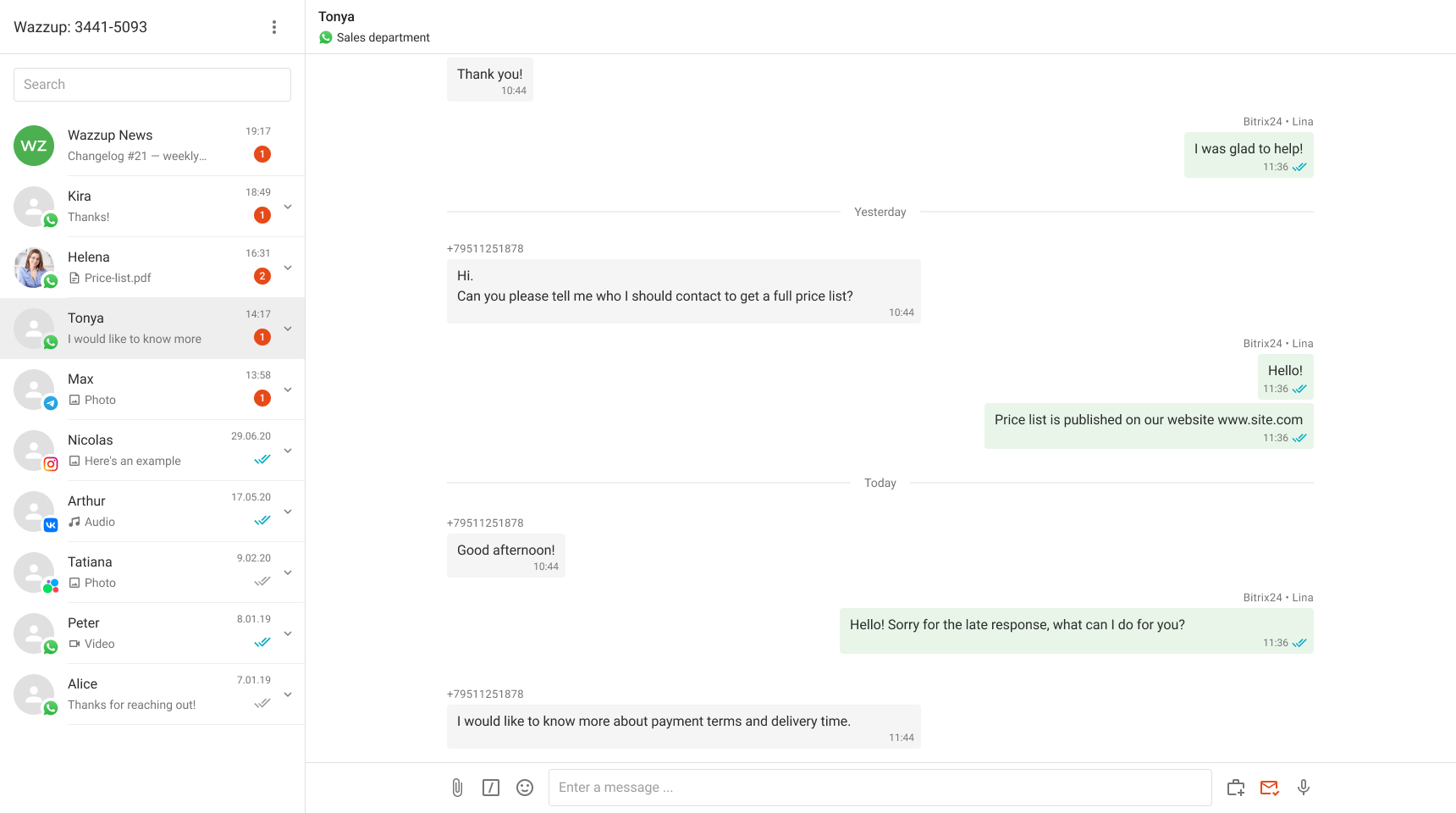
We recommend using the Wazzup chat interface because:
- No need to build or maintain your own messaging UI — you save development effort and avoid ongoing maintenance;
- You get new features first — we continuously improve the interface to make it more convenient and valuable. New capabilities are added to the iframe first, and only later become available via individual API methods;
- Familiar user experience — the Wazzup chat window looks and feels like a native messenger, so your users can start working with it immediately — no learning curve required;
- Mobile app included — your users can stay connected even when they're on the go, thanks to the Wazzup mobile app.
👉 Learn more about Wazzup chats
👉 Learn more about the Wazzup mobile app
In the scenarios described below, you can use either the built‑in Wazzup chat window (iframe) or the individual messaging methods for communication. However, since we recommend using the iframe, all scenarios reference this approach.
If you plan to build your own chat interface, keep in mind that development will take longer than the timelines outlined in these scenarios.
For Wazzup Label
The first four development steps will take approximately two to three days. After that, your customers will be able to connect channels in their own accounts and start messaging directly from the embedded chat window.
| What to do | Why it matters |
1. Get access to your partner account and client_id |
Contact your Wazzup manager to obtain your credentials. You'll need your client_id, email, and password for the next steps |
| 2. Obtain a token for the end‑customer account | Required to perform actions on behalf of your customer — connecting channels, sending messages, etc. |
| 3. Sync your service's user accounts with Wazzup | Ensures Wazzup has an up‑to‑date list of your users who will be working in Wazzup chats |
| 4. Learn how to open the chat window | Global scope "scope": "global" – displays all chats accessible to the user. Place this button prominently for easy access.
Card scope |
| 5. Sync your CRM contacts with Wazzup | Enables: chats to be shown to the responsible manager, quick navigation to contact cards in your CRM, initiating chats from contact records — even for contacts created before Wazzup integration |
| 6. Sync your CRM deals with Wazzup | Ensures: chats are visible to the manager responsible for the deal, managers can see open and closed deals for a contact, and can quickly jump to the deal card in your CRM |
| 7. Set up the unanswered counter | Alerts managers to unanswered messages. Best placed on the button that opens the global chat window |
| 8. Learn to receive and process webhooks | Enables you to receive new message notifications and use them in your system's alerting |
| 9. Fine‑tune the Deals dropdown | 1. Verify that links are correctly passed in PATCH /v2/contacts to display a button linking to the contact page in your CRM.
2. Verify that links are correctly passed in 3. Subscribe to webhooks for creating a deal or contact, or learn how to create new deals when the user clicks the "+" in the "Deals" dropdown via an event. |
For White Label
The first seven development steps will take a few days to complete. After that, your customers will be able to connect channels in their own accounts and start messaging directly from the embedded chat window.
| What to do | Why it matters |
1. Get access to your affiliate account and client_id |
Contact your Wazzup manager to receive your credentials. You'll need your client_id , email, and password for the steps that follow |
| 2. Create an account for your customer | This will generate a customer account_id , which you'll need to obtain user access tokens |
| 3. Obtain a token for the end‑customer account | This token allows you to perform actions on behalf of the customer — connecting channels, sending messages, and more |
| 4. Sync your service's user accounts with Wazzup | This ensures Wazzup has an up‑to‑date list of the users who will be working in Wazzup chats |
| 5. Learn how to open the chat window |
Global scope Card scope |
| 6. Subscribe to and start processing channel webhooks | At a minimum, you'll need channel.qr_update and channel.status_update : channel.qr_update — required to connect phone‑based channels (e.g., a Telegram number); channel.status_update — keeps you informed about changes in channel status |
| 7. Add channel connection capability to your service | Enable customers to connect channels — either via the Wazzup iframe or through dedicated channel management methods |
| 8. Sync your CRM contacts with Wazzup | This ensures that: chats are shown to the manager responsible for each contact; users can quickly navigate to the contact card in your CRM; you can initiate a chat from a contact record — even for contacts that were created in your CRM before integrating with Wazzup |
| 9. Sync your CRM deals with Wazzup | This ensures that: chats are shown to the manager responsible for the deal; managers can see a list of open and closed deals associated with a contact; they can quickly jump to the deal card in your CRM |
| 10. Set up the unanswered counter | This lets managers know when there are unanswered messages waiting. We recommend placing the counter on the button that opens the global chat window |
| 11. Learn to receive and process new message webhooks | This enables you to get real‑time notifications about incoming messages and use them in your system's alerting or notification features |
| 12. Fine‑tune the Deals dropdown | 1. Verify contact links – ensure links are correctly passed in PATCH /v2/contacts so a button linking to the contact page in your CRM is displayed.
2. Verify deal links – check that links are correctly passed in 3.Subscribe to webhooks for creating a deal or contact, or learn how to create new deals when the user clicks the "+" in the "Deals" dropdown via an event. |