


'%3e%3cpath%20d='M10%2020C15.5228%2020%2020%2015.5228%2020%2010C20%204.47715%2015.5228%200%2010%200C4.47715%200%200%204.47715%200%2010C0%2015.5228%204.47715%2020%2010%2020Z'%20fill='%23F0F0F0'/%3e%3cpath%20d='M19.378%2013.4785C19.78%2012.3951%2020%2011.2234%2020%2010.0002C20%208.77701%2019.78%207.60529%2019.378%206.52197H0.621992C0.220039%207.60529%200%208.77701%200%2010.0002C0%2011.2234%200.220039%2012.3951%200.621992%2013.4785L10%2014.348L19.378%2013.4785Z'%20fill='%230052B4'/%3e%3cpath%20d='M9.9991%2019.9998C14.2987%2019.9998%2017.9642%2017.286%2019.3771%2013.478H0.621094C2.03402%2017.286%205.69945%2019.9998%209.9991%2019.9998Z'%20fill='%23D80027'/%3e%3c/g%3e%3cdefs%3e%3cclipPath%20id='clip0_586_4336'%3e%3crect%20width='20'%20height='20'%20fill='white'/%3e%3c/clipPath%3e%3c/defs%3e%3c/svg%3e)
'%3e%3cpath%20d='M10%2020C15.5228%2020%2020%2015.5228%2020%2010C20%204.47715%2015.5228%200%2010%200C4.47715%200%200%204.47715%200%2010C0%2015.5228%204.47715%2020%2010%2020Z'%20fill='%23F0F0F0'/%3e%3cpath%20d='M9.56445%209.99982H19.9992C19.9992%209.09725%2019.8789%208.22287%2019.6547%207.39111H9.56445V9.99982Z'%20fill='%23D80027'/%3e%3cpath%20d='M9.56445%204.78254H18.5315C17.9193%203.78363%2017.1366%202.9007%2016.2241%202.17383H9.56445V4.78254Z'%20fill='%23D80027'/%3e%3cpath%20d='M9.99828%2020.0001C12.3518%2020.0001%2014.5149%2019.1866%2016.2231%2017.8262H3.77344C5.48164%2019.1866%207.6448%2020.0001%209.99828%2020.0001Z'%20fill='%23D80027'/%3e%3cpath%20d='M1.46699%2015.2171H18.5315C19.023%2014.4152%2019.4041%2013.5386%2019.6548%2012.6084H0.34375C0.594414%2013.5386%200.975547%2014.4152%201.46699%2015.2171Z'%20fill='%23D80027'/%3e%3cpath%20d='M4.63219%201.56164H5.54348L4.69582%202.17746L5.01961%203.17391L4.17199%202.55809L3.32437%203.17391L3.60406%202.31309C2.85773%202.93477%202.20359%203.66313%201.66453%204.47469H1.95652L1.41695%204.86668C1.33289%205.00691%201.25227%205.14937%201.175%205.29395L1.43266%206.08695L0.951953%205.7377C0.832461%205.99086%200.723164%206.24973%200.624922%206.51398L0.908789%207.38773H1.95652L1.10887%208.00356L1.43266%209L0.585039%208.38418L0.0773047%208.75309C0.0264844%209.1616%200%209.57769%200%2010H10C10%204.47719%2010%203.82609%2010%200C8.02453%200%206.18301%200.573047%204.63219%201.56164ZM5.01961%209L4.17199%208.38418L3.32437%209L3.64816%208.00356L2.80051%207.38773H3.84824L4.17199%206.39129L4.49574%207.38773H5.54348L4.69582%208.00356L5.01961%209ZM4.69582%205.09051L5.01961%206.08695L4.17199%205.47113L3.32437%206.08695L3.64816%205.09051L2.80051%204.47469H3.84824L4.17199%203.47824L4.49574%204.47469H5.54348L4.69582%205.09051ZM8.60656%209L7.75895%208.38418L6.91133%209L7.23512%208.00356L6.38746%207.38773H7.4352L7.75895%206.39129L8.0827%207.38773H9.13043L8.28277%208.00356L8.60656%209ZM8.28277%205.09051L8.60656%206.08695L7.75895%205.47113L6.91133%206.08695L7.23512%205.09051L6.38746%204.47469H7.4352L7.75895%203.47824L8.0827%204.47469H9.13043L8.28277%205.09051ZM8.28277%202.17746L8.60656%203.17391L7.75895%202.55809L6.91133%203.17391L7.23512%202.17746L6.38746%201.56164H7.4352L7.75895%200.565195L8.0827%201.56164H9.13043L8.28277%202.17746Z'%20fill='%230052B4'/%3e%3c/g%3e%3cdefs%3e%3cclipPath%20id='clip0_1008_13251'%3e%3crect%20width='20'%20height='20'%20fill='white'/%3e%3c/clipPath%3e%3c/defs%3e%3c/svg%3e)
'%3e%3cpath%20d='M10%2020C15.5228%2020%2020%2015.5228%2020%2010C20%204.47715%2015.5228%200%2010%200C4.47715%200%200%204.47715%200%2010C0%2015.5228%204.47715%2020%2010%2020Z'%20fill='%23F0F0F0'/%3e%3cpath%20d='M0.34375%2012.6089C1.26711%2016.0348%203.96465%2018.7324%207.39059%2019.6557V12.6089H0.34375Z'%20fill='%23D80027'/%3e%3cpath%20d='M7.39055%200.344727C3.96465%201.26805%201.26707%203.96562%200.34375%207.39152H7.39059V0.344727H7.39055Z'%20fill='%230052B4'/%3e%3cpath%20d='M19.6562%207.39152C18.7329%203.96562%2016.0353%201.26805%2012.6094%200.344727V7.39156H19.6562V7.39152Z'%20fill='%23D80027'/%3e%3cpath%20d='M12.6094%2019.6557C16.0353%2018.7324%2018.7329%2016.0348%2019.6562%2012.6089H12.6094V19.6557Z'%20fill='%230052B4'/%3e%3cpath%20d='M12.608%209.99982C12.608%2011.4406%2011.4401%2012.6085%209.99934%2012.6085C8.55859%2012.6085%207.39062%2011.4406%207.39062%209.99982C7.39062%208.55904%209.99934%207.39111%209.99934%207.39111C9.99934%207.39111%2012.608%208.55904%2012.608%209.99982Z'%20fill='%23496E2D'/%3e%3cpath%20d='M7.39062%209.99982C7.39062%208.55904%208.55859%207.39111%209.99934%207.39111C11.4401%207.39111%2012.608%208.55904%2012.608%209.99982'%20fill='%230052B4'/%3e%3cpath%20d='M8.5332%208.6958V10.3262C8.5332%2011.1367%209.19016%2011.7936%2010.0006%2011.7936C10.811%2011.7936%2011.468%2011.1367%2011.468%2010.3262V8.6958H8.5332Z'%20fill='%23D80027'/%3e%3c/g%3e%3cdefs%3e%3cclipPath%20id='clip0_1008_13324'%3e%3crect%20width='20'%20height='20'%20fill='white'/%3e%3c/clipPath%3e%3c/defs%3e%3c/svg%3e)


How to work with the unanswered counter
Every Wazzup chat has an unanswered messages counter — this is the number of messages from a customer that a manager hasn't replied to yet.
How unanswered messages differ from unread ones
Messengers send notifications about unread messages. As soon as the sales rep opens the chat, the notification disappears. The problem is that the chat can be opened, the sales rep can get distracted, and forget to reply.
In Wazzup, notifications are sent about unanswered messages. They will not disappear until the employee replies to the client or clicks the "No reply needed" button.
How unanswered messages look in Wazzup chats
The appearance of counters depends on the employee's role.
For Sales reps
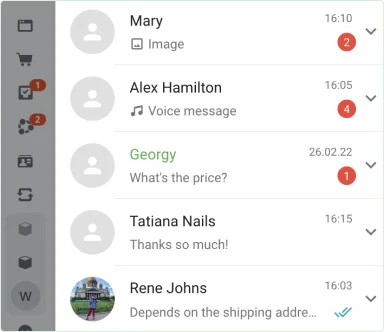
Chats where the client needs a reply are shown at the top of the list. On the right side of the chat there is a red unanswered counter.
For Managers
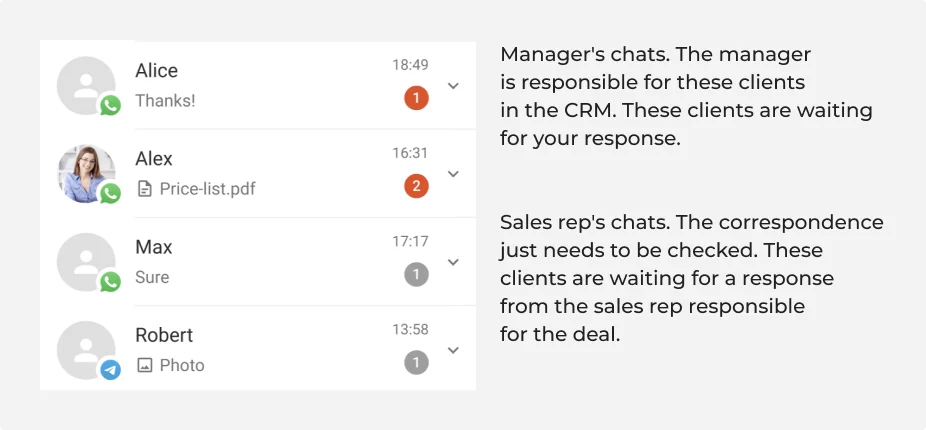
There are two counters:
- Red — the client writes to a chat for which the Manager is responsible in the CRM. These chats are shown at the top.
- Grey — the message arrived in a Sales rep's chat, and the conversation only needs to be checked. These chats are below.
How to receive notifications for all chats — we explain below.
For "Quality Control"
All counters are gray — showing how many unanswered messages remain for the salesperson.
How Notifications Work
Notifications are only sent for red unanswered messages. Not for gray ones.
- In Bitrix24, notifications are sent by a bot: it sends messages with sound for chats not connected to Open Channels. 👉 Learn more about bot notifications
- In Kommo, native CRM notifications appear in the notifications chat.
- In the Wazzup mobile app — push notifications. 👉 Learn more about Wazzup apps
- In Wazzup Web and Wazzup Desktop — browser notifications with sound.
The total number of red unanswered messages is displayed on the application icons.
How to configure unanswered counters and notifications
There are several settings in your Wazzup account to simplify working with unanswered messages:
Notify employees with the "Manager" role on all messages
A setting for the "Manager" role.
Useful if you want to receive notifications about all messages, not just your own. All unanswered counters will turn red, and alerts will be sent for every message on the channel.
This setting is located in the "Integration with CRM" section → "Advanced" tab.
Resetting the unanswered counter
Located in the "Settings" section in the left menu and applies to chats across all your channels. Useful when many messages have accumulated that don't require a reply.
Disable unanswered message notifications for the channel
This setting is located in the "Channels" section → within the channel settings.
Use this setting if:
1. You need to reset the unanswered counter for chats on a channel. Then toggle the setting on and off. Notifications for previously received messages on the channel will disappear but will continue for new ones.
2. You don't need notifications at all. For example, you don't reply to customers from this channel but still receive messages on it.
This setting only works in Wazzup chats and also affects the behavior of the Wazzup chat bot in Bitrix24.
How the chat bot notifies about messages when channel notifications are disabled:
- Does not send notifications if the "The first responding sales reps receives a new client" setting is disabled in the "Integration with CRM" section;
- Sends notifications but does not specify the number of unanswered messages if the "The first responding sales reps receives a new client" setting is enabled in the "Integration with CRM" section.
This setting does not affect notifications in native CRM chats, such as Bitrix24 Open Channels or Kommo imbox. The CRM will continue to notify about new messages.
Frequently Asked Questions
There are gray and red notifications in the chat list. Why?
This is how the interface works for the "Manager" role.
- Red ones show which of your customers need a reply. Notifications are sent for these.
- Gray ones show which customers haven't received a reply from managers yet. This allows supervisors to monitor work.
The difference between gray and red counters is explained in more detail above.
Chats in the messenger and in Wazzup are displayed in a different order. What's the reason?
Messengers show unread messages, while Wazzup shows unanswered messages.
If a manager read a message but didn't reply, the chat will move down in the messenger but remain at the top in Wazzup until a reply is sent. That's why the order is different.