


'%3e%3cpath%20d='M10%2020C15.5228%2020%2020%2015.5228%2020%2010C20%204.47715%2015.5228%200%2010%200C4.47715%200%200%204.47715%200%2010C0%2015.5228%204.47715%2020%2010%2020Z'%20fill='%23F0F0F0'/%3e%3cpath%20d='M19.378%2013.4785C19.78%2012.3951%2020%2011.2234%2020%2010.0002C20%208.77701%2019.78%207.60529%2019.378%206.52197H0.621992C0.220039%207.60529%200%208.77701%200%2010.0002C0%2011.2234%200.220039%2012.3951%200.621992%2013.4785L10%2014.348L19.378%2013.4785Z'%20fill='%230052B4'/%3e%3cpath%20d='M9.9991%2019.9998C14.2987%2019.9998%2017.9642%2017.286%2019.3771%2013.478H0.621094C2.03402%2017.286%205.69945%2019.9998%209.9991%2019.9998Z'%20fill='%23D80027'/%3e%3c/g%3e%3cdefs%3e%3cclipPath%20id='clip0_586_4336'%3e%3crect%20width='20'%20height='20'%20fill='white'/%3e%3c/clipPath%3e%3c/defs%3e%3c/svg%3e)
'%3e%3cpath%20d='M10%2020C15.5228%2020%2020%2015.5228%2020%2010C20%204.47715%2015.5228%200%2010%200C4.47715%200%200%204.47715%200%2010C0%2015.5228%204.47715%2020%2010%2020Z'%20fill='%23F0F0F0'/%3e%3cpath%20d='M9.56445%209.99982H19.9992C19.9992%209.09725%2019.8789%208.22287%2019.6547%207.39111H9.56445V9.99982Z'%20fill='%23D80027'/%3e%3cpath%20d='M9.56445%204.78254H18.5315C17.9193%203.78363%2017.1366%202.9007%2016.2241%202.17383H9.56445V4.78254Z'%20fill='%23D80027'/%3e%3cpath%20d='M9.99828%2020.0001C12.3518%2020.0001%2014.5149%2019.1866%2016.2231%2017.8262H3.77344C5.48164%2019.1866%207.6448%2020.0001%209.99828%2020.0001Z'%20fill='%23D80027'/%3e%3cpath%20d='M1.46699%2015.2171H18.5315C19.023%2014.4152%2019.4041%2013.5386%2019.6548%2012.6084H0.34375C0.594414%2013.5386%200.975547%2014.4152%201.46699%2015.2171Z'%20fill='%23D80027'/%3e%3cpath%20d='M4.63219%201.56164H5.54348L4.69582%202.17746L5.01961%203.17391L4.17199%202.55809L3.32437%203.17391L3.60406%202.31309C2.85773%202.93477%202.20359%203.66313%201.66453%204.47469H1.95652L1.41695%204.86668C1.33289%205.00691%201.25227%205.14937%201.175%205.29395L1.43266%206.08695L0.951953%205.7377C0.832461%205.99086%200.723164%206.24973%200.624922%206.51398L0.908789%207.38773H1.95652L1.10887%208.00356L1.43266%209L0.585039%208.38418L0.0773047%208.75309C0.0264844%209.1616%200%209.57769%200%2010H10C10%204.47719%2010%203.82609%2010%200C8.02453%200%206.18301%200.573047%204.63219%201.56164ZM5.01961%209L4.17199%208.38418L3.32437%209L3.64816%208.00356L2.80051%207.38773H3.84824L4.17199%206.39129L4.49574%207.38773H5.54348L4.69582%208.00356L5.01961%209ZM4.69582%205.09051L5.01961%206.08695L4.17199%205.47113L3.32437%206.08695L3.64816%205.09051L2.80051%204.47469H3.84824L4.17199%203.47824L4.49574%204.47469H5.54348L4.69582%205.09051ZM8.60656%209L7.75895%208.38418L6.91133%209L7.23512%208.00356L6.38746%207.38773H7.4352L7.75895%206.39129L8.0827%207.38773H9.13043L8.28277%208.00356L8.60656%209ZM8.28277%205.09051L8.60656%206.08695L7.75895%205.47113L6.91133%206.08695L7.23512%205.09051L6.38746%204.47469H7.4352L7.75895%203.47824L8.0827%204.47469H9.13043L8.28277%205.09051ZM8.28277%202.17746L8.60656%203.17391L7.75895%202.55809L6.91133%203.17391L7.23512%202.17746L6.38746%201.56164H7.4352L7.75895%200.565195L8.0827%201.56164H9.13043L8.28277%202.17746Z'%20fill='%230052B4'/%3e%3c/g%3e%3cdefs%3e%3cclipPath%20id='clip0_1008_13251'%3e%3crect%20width='20'%20height='20'%20fill='white'/%3e%3c/clipPath%3e%3c/defs%3e%3c/svg%3e)
'%3e%3cpath%20d='M10%2020C15.5228%2020%2020%2015.5228%2020%2010C20%204.47715%2015.5228%200%2010%200C4.47715%200%200%204.47715%200%2010C0%2015.5228%204.47715%2020%2010%2020Z'%20fill='%23F0F0F0'/%3e%3cpath%20d='M0.34375%2012.6089C1.26711%2016.0348%203.96465%2018.7324%207.39059%2019.6557V12.6089H0.34375Z'%20fill='%23D80027'/%3e%3cpath%20d='M7.39055%200.344727C3.96465%201.26805%201.26707%203.96562%200.34375%207.39152H7.39059V0.344727H7.39055Z'%20fill='%230052B4'/%3e%3cpath%20d='M19.6562%207.39152C18.7329%203.96562%2016.0353%201.26805%2012.6094%200.344727V7.39156H19.6562V7.39152Z'%20fill='%23D80027'/%3e%3cpath%20d='M12.6094%2019.6557C16.0353%2018.7324%2018.7329%2016.0348%2019.6562%2012.6089H12.6094V19.6557Z'%20fill='%230052B4'/%3e%3cpath%20d='M12.608%209.99982C12.608%2011.4406%2011.4401%2012.6085%209.99934%2012.6085C8.55859%2012.6085%207.39062%2011.4406%207.39062%209.99982C7.39062%208.55904%209.99934%207.39111%209.99934%207.39111C9.99934%207.39111%2012.608%208.55904%2012.608%209.99982Z'%20fill='%23496E2D'/%3e%3cpath%20d='M7.39062%209.99982C7.39062%208.55904%208.55859%207.39111%209.99934%207.39111C11.4401%207.39111%2012.608%208.55904%2012.608%209.99982'%20fill='%230052B4'/%3e%3cpath%20d='M8.5332%208.6958V10.3262C8.5332%2011.1367%209.19016%2011.7936%2010.0006%2011.7936C10.811%2011.7936%2011.468%2011.1367%2011.468%2010.3262V8.6958H8.5332Z'%20fill='%23D80027'/%3e%3c/g%3e%3cdefs%3e%3cclipPath%20id='clip0_1008_13324'%3e%3crect%20width='20'%20height='20'%20fill='white'/%3e%3c/clipPath%3e%3c/defs%3e%3c/svg%3e)


Group chats
In Wazzup, you can communicate with customers in WhatsApp, Telegram group chats.
Group chats on different plans
Telegram group chats are available on any plan and work the same way. Groups are loaded into Wazzup so you can chat in them, but you cannot create a Telegram group from Wazzup.
For WhatsApp channels, there are different features depending on the plan:
Start and Inbox
- Cannot create or edit groups.
- WhatsApp groups are not pulled in.
Pro and Max
- Can create and configure group chats.
- WhatsApp groups are automatically pulled into Wazzup.
When you downgrade to Start or Inbox, you won't be able to send messages, and incoming messages won't be received. You won't be able to change the group name or participant list. If you upgrade back to Pro or Max, chats from the period when you were on Start or Inbox won't be loaded.
A WhatsApp group chat is not a single conversation. We count the number of participants in the chat (excluding yourself), and that's exactly how many unique conversations are counted.
Example: If you send a message to a group chat with 5 participants (excluding yourself), that counts as 5 unique conversations.
In Telegram, there are two types of group chats — regular groups and supergroups. For participants, a supergroup looks no different from a regular chat. It looks like a chat that the administrator has configured in a special way, for example, by enabling member search or access via a link.
Supergroup support in Wazzup
We do support supergroups, but by default they are not pulled into Wazzup chats. If you need your bot to work in a supergroup, contact support — we'll enable this feature for you.
How a chat becomes a supergroup
A group chat automatically turns into a supergroup if:
- the administrator makes the group public (enables access via link);
- the administrator adds the chat to a folder and copies the link to it;
- the chat has more than 200 participants.
A chat can become a supergroup at any time — either from the start or during the conversation.
How to avoid issues
If you're just creating a group, enable access via a link right away, before anyone sends a message. Then the new chat will become a supergroup before appearing in Wazzup and will work properly. If you don't need link access, open it and then close it — the chat will remain in supergroup status.
If the group already exists, don't enable link access to the chat, and make sure there are no more than 100 participants: once a chat has more than 100 people, it stops syncing with Wazzup, even if it's not a supergroup.
If you're not an admin but a participant — unfortunately, you can't influence this. If an admin turns the chat into a supergroup, you won't be able to write in it anymore.
Currently, we do not support group chats with topics enabled. If topics are enabled in a group, the chat won't be displayed, and you won't be able to send messages to it.
If there are any changes in supergroup or topic chat support, we'll update this article.
How to create a WhatsApp group chat in Wazzup
You can create a WhatsApp group from Wazzup chats. Telegram groups can only be created in their respective messengers.
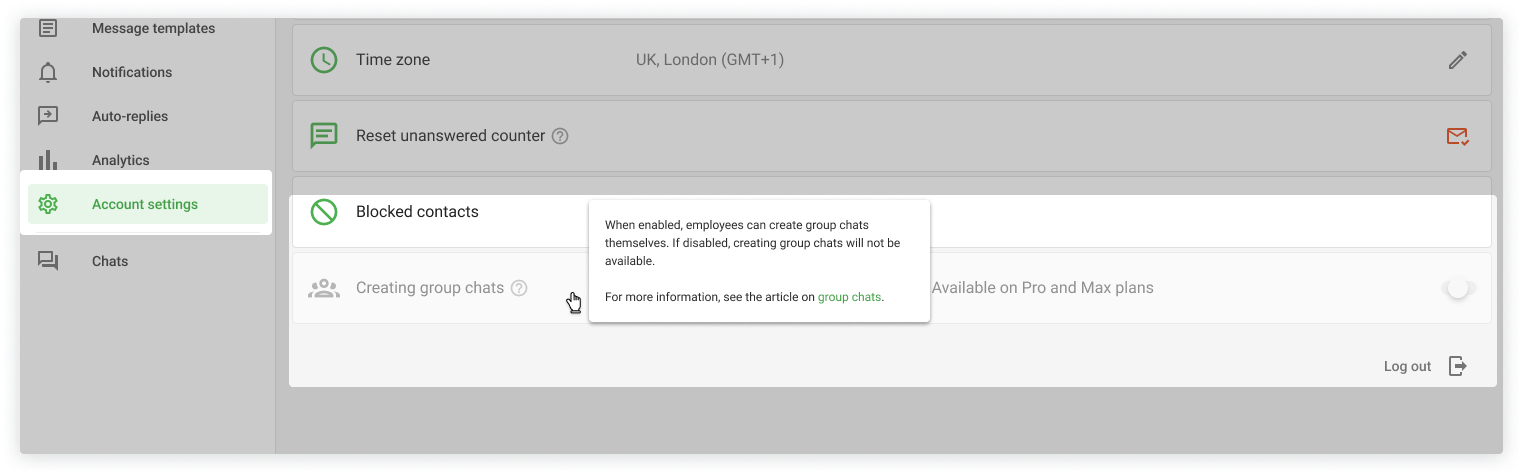
1. Enable group chat creation. Go to "Settings" and activate the "Creating group chats" option.
If this setting is disabled, the group creation button won't appear.
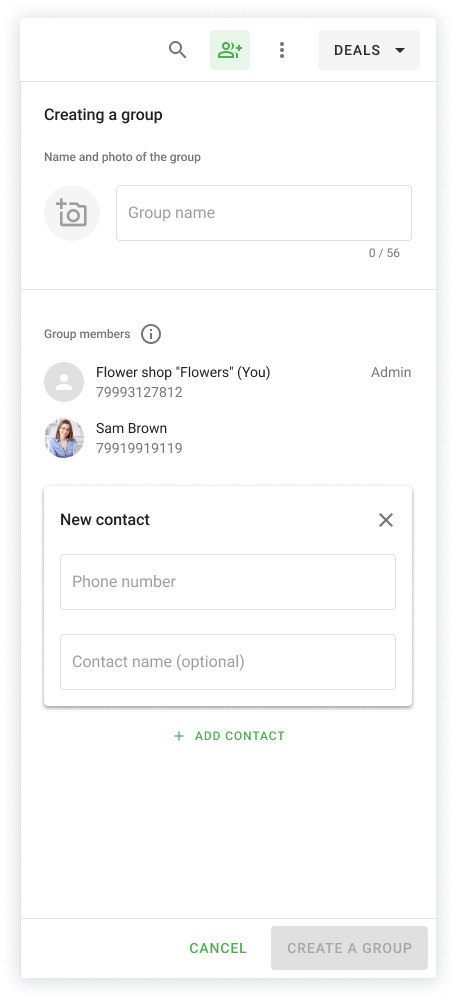
2. Go to "Chats". Select a conversation with the customer you want to create a group chat with — click the group creation button at the top right of the screen.

3. Now set up the group. A menu will open on the right:
- enter the group name,
- upload a photo in JPEG or PNG format,
- add participant phone numbers.
Your channel number and the contact you're creating the group from will be added automatically.
4. Click "Create group".
If you already have a conversation with the contact, they will automatically appear in the group participant list.
If a user has disabled being added to groups, they will receive an invite link that will remain active for 3 days.
If the contact is not registered on WhatsApp, a notification will appear stating that this number is not on WhatsApp.
How to manage a WhatsApp group
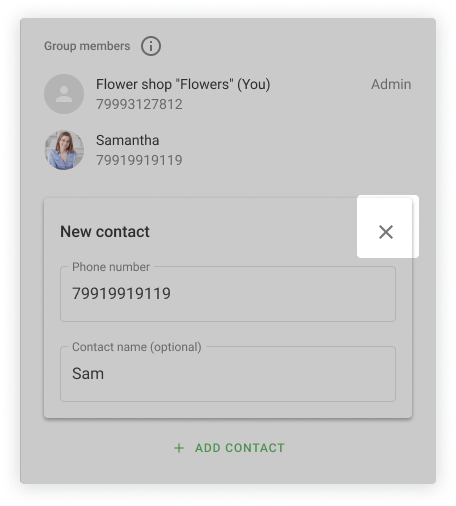
Add and remove participants. To add a new contact to the chat, click the "+Add contact" button.
To remove a participant, click the three dots on the right → "Remove contact" → "Yes, remove".
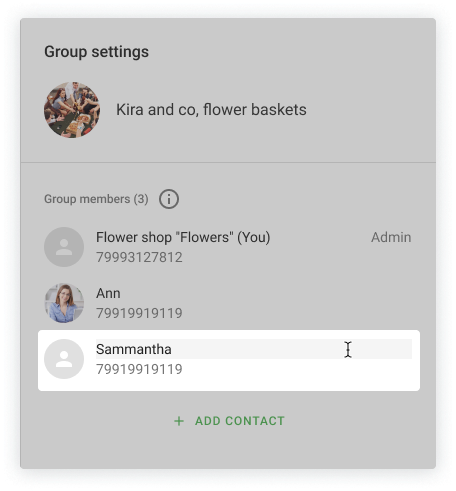
Rename participants. To change a participant's name, click on their name — a field for entering a new name will appear.
Change the avatar and group name. Hover over the group avatar and click on it. An upload menu will open where you can choose a new image. If you want to change the group name, simply click on the current name field and enter a new one.
If you were added to a group directly in the messenger rather than through Wazzup, you won't be able to add or remove participants, rename the group, or change its photo. However, you will still be able to edit participant names.
How group chats work in Kommo
You can communicate in group chats in the Kommo chats, Wazzup chats, and our apps.
You cannot create group chats from imBox. If a group has more than 100 participants, they won't be pulled into Kommo.
To send a message to a group chat via Salesbot, you can use the bot's native "Send message" step.
A group chat will appear in imBox automatically if:
- a user was added to a group chat in the messenger,
- this chat is linked to a channel connected to Wazzup,
- at least one message has been sent in the group.
If the group chat was created from the Wazzup window, a comment with the contact's name will appear in the last deal card associated with that contact.
If a new participant is added to a group chat and they don't yet exist in the CRM, they won't be created automatically. A contact and deal will only appear if the customer writes a personal message to the company.
How managers work with groups
- A group chat is shown to a manager if they are the responsible person for any participant in the chat or for a deal linked to a contact in the chat.
- The manager receives notifications about all new messages in the chat — even if they were sent by a contact assigned to another employee.
- If one manager clears the unread message counter, it will reset for everyone else as well.
- If a group contact has no responsible person, the chat will be visible to all sales reps who receive new clients.
How group chats work in Bitrix24
A group chat is shown to a manager if they are the responsible person for any participant in the chat or for a lead or deal linked to a contact in the chat.
If you communicate via the Bitrix24 Open Channel, the name and picture of the group chat will be the same as in the messenger. However, the CRM does not automatically create deal or contact cards.
When a group chat is created from the Wazzup window, a comment with the contact's name will appear in the last deal card associated with that contact.