


'%3e%3cpath%20d='M10%2020C15.5228%2020%2020%2015.5228%2020%2010C20%204.47715%2015.5228%200%2010%200C4.47715%200%200%204.47715%200%2010C0%2015.5228%204.47715%2020%2010%2020Z'%20fill='%23F0F0F0'/%3e%3cpath%20d='M19.378%2013.4785C19.78%2012.3951%2020%2011.2234%2020%2010.0002C20%208.77701%2019.78%207.60529%2019.378%206.52197H0.621992C0.220039%207.60529%200%208.77701%200%2010.0002C0%2011.2234%200.220039%2012.3951%200.621992%2013.4785L10%2014.348L19.378%2013.4785Z'%20fill='%230052B4'/%3e%3cpath%20d='M9.9991%2019.9998C14.2987%2019.9998%2017.9642%2017.286%2019.3771%2013.478H0.621094C2.03402%2017.286%205.69945%2019.9998%209.9991%2019.9998Z'%20fill='%23D80027'/%3e%3c/g%3e%3cdefs%3e%3cclipPath%20id='clip0_586_4336'%3e%3crect%20width='20'%20height='20'%20fill='white'/%3e%3c/clipPath%3e%3c/defs%3e%3c/svg%3e)
'%3e%3cpath%20d='M10%2020C15.5228%2020%2020%2015.5228%2020%2010C20%204.47715%2015.5228%200%2010%200C4.47715%200%200%204.47715%200%2010C0%2015.5228%204.47715%2020%2010%2020Z'%20fill='%23F0F0F0'/%3e%3cpath%20d='M9.56445%209.99982H19.9992C19.9992%209.09725%2019.8789%208.22287%2019.6547%207.39111H9.56445V9.99982Z'%20fill='%23D80027'/%3e%3cpath%20d='M9.56445%204.78254H18.5315C17.9193%203.78363%2017.1366%202.9007%2016.2241%202.17383H9.56445V4.78254Z'%20fill='%23D80027'/%3e%3cpath%20d='M9.99828%2020.0001C12.3518%2020.0001%2014.5149%2019.1866%2016.2231%2017.8262H3.77344C5.48164%2019.1866%207.6448%2020.0001%209.99828%2020.0001Z'%20fill='%23D80027'/%3e%3cpath%20d='M1.46699%2015.2171H18.5315C19.023%2014.4152%2019.4041%2013.5386%2019.6548%2012.6084H0.34375C0.594414%2013.5386%200.975547%2014.4152%201.46699%2015.2171Z'%20fill='%23D80027'/%3e%3cpath%20d='M4.63219%201.56164H5.54348L4.69582%202.17746L5.01961%203.17391L4.17199%202.55809L3.32437%203.17391L3.60406%202.31309C2.85773%202.93477%202.20359%203.66313%201.66453%204.47469H1.95652L1.41695%204.86668C1.33289%205.00691%201.25227%205.14937%201.175%205.29395L1.43266%206.08695L0.951953%205.7377C0.832461%205.99086%200.723164%206.24973%200.624922%206.51398L0.908789%207.38773H1.95652L1.10887%208.00356L1.43266%209L0.585039%208.38418L0.0773047%208.75309C0.0264844%209.1616%200%209.57769%200%2010H10C10%204.47719%2010%203.82609%2010%200C8.02453%200%206.18301%200.573047%204.63219%201.56164ZM5.01961%209L4.17199%208.38418L3.32437%209L3.64816%208.00356L2.80051%207.38773H3.84824L4.17199%206.39129L4.49574%207.38773H5.54348L4.69582%208.00356L5.01961%209ZM4.69582%205.09051L5.01961%206.08695L4.17199%205.47113L3.32437%206.08695L3.64816%205.09051L2.80051%204.47469H3.84824L4.17199%203.47824L4.49574%204.47469H5.54348L4.69582%205.09051ZM8.60656%209L7.75895%208.38418L6.91133%209L7.23512%208.00356L6.38746%207.38773H7.4352L7.75895%206.39129L8.0827%207.38773H9.13043L8.28277%208.00356L8.60656%209ZM8.28277%205.09051L8.60656%206.08695L7.75895%205.47113L6.91133%206.08695L7.23512%205.09051L6.38746%204.47469H7.4352L7.75895%203.47824L8.0827%204.47469H9.13043L8.28277%205.09051ZM8.28277%202.17746L8.60656%203.17391L7.75895%202.55809L6.91133%203.17391L7.23512%202.17746L6.38746%201.56164H7.4352L7.75895%200.565195L8.0827%201.56164H9.13043L8.28277%202.17746Z'%20fill='%230052B4'/%3e%3c/g%3e%3cdefs%3e%3cclipPath%20id='clip0_1008_13251'%3e%3crect%20width='20'%20height='20'%20fill='white'/%3e%3c/clipPath%3e%3c/defs%3e%3c/svg%3e)
'%3e%3cpath%20d='M10%2020C15.5228%2020%2020%2015.5228%2020%2010C20%204.47715%2015.5228%200%2010%200C4.47715%200%200%204.47715%200%2010C0%2015.5228%204.47715%2020%2010%2020Z'%20fill='%23F0F0F0'/%3e%3cpath%20d='M0.34375%2012.6089C1.26711%2016.0348%203.96465%2018.7324%207.39059%2019.6557V12.6089H0.34375Z'%20fill='%23D80027'/%3e%3cpath%20d='M7.39055%200.344727C3.96465%201.26805%201.26707%203.96562%200.34375%207.39152H7.39059V0.344727H7.39055Z'%20fill='%230052B4'/%3e%3cpath%20d='M19.6562%207.39152C18.7329%203.96562%2016.0353%201.26805%2012.6094%200.344727V7.39156H19.6562V7.39152Z'%20fill='%23D80027'/%3e%3cpath%20d='M12.6094%2019.6557C16.0353%2018.7324%2018.7329%2016.0348%2019.6562%2012.6089H12.6094V19.6557Z'%20fill='%230052B4'/%3e%3cpath%20d='M12.608%209.99982C12.608%2011.4406%2011.4401%2012.6085%209.99934%2012.6085C8.55859%2012.6085%207.39062%2011.4406%207.39062%209.99982C7.39062%208.55904%209.99934%207.39111%209.99934%207.39111C9.99934%207.39111%2012.608%208.55904%2012.608%209.99982Z'%20fill='%23496E2D'/%3e%3cpath%20d='M7.39062%209.99982C7.39062%208.55904%208.55859%207.39111%209.99934%207.39111C11.4401%207.39111%2012.608%208.55904%2012.608%209.99982'%20fill='%230052B4'/%3e%3cpath%20d='M8.5332%208.6958V10.3262C8.5332%2011.1367%209.19016%2011.7936%2010.0006%2011.7936C10.811%2011.7936%2011.468%2011.1367%2011.468%2010.3262V8.6958H8.5332Z'%20fill='%23D80027'/%3e%3c/g%3e%3cdefs%3e%3cclipPath%20id='clip0_1008_13324'%3e%3crect%20width='20'%20height='20'%20fill='white'/%3e%3c/clipPath%3e%3c/defs%3e%3c/svg%3e)


MMLite: how to avoid WABA spam bans
Meta has launched the MMLite tool (Marketing Messages Lite API) for WABA channels. It helps reduce the risk of being blocked for spam. Let's explain how MMLite works and how to enable it.
What are the consequences of a WABA ban for spam
It's not just a temporary loss of a phone number:
1. It's almost impossible to unblock a WhatsApp Business account. Meta rejects 99% of appeals against spam bans.
2. A new account is not a solution. If you register a new WhatsApp Business account for the same company, it will most likely be blocked as well.
As a result, when you connect a WABA, you will have to create and fill out a Facebook account and business portfolio, register a new phone number, add and get message templates approved.
Even if it doesn't come to a ban, complaints about broadcasts will negatively affect Meta's attitude towards your WhatsApp Business account and company. For example, Meta may block WABA templates and reduce daily conversation limits.
How MMLite helps avoid bans and complaints
Meta analyzes how contacts react to messages from businesses. If a customer ignores broadcasts, reports them, or blocks the company, Meta flags that they should not receive marketing messages.
If you have MMLite enabled, Meta will not send broadcasts to disloyal customers. In the chats, unsent messages will be displayed with an error, and no money will be deducted from the balance for them.
MMLite works only with marketing broadcasts — that is, with templates from the "Marketing" category. Templates from the "Utility" category (Notifications, reminders, customer questions) will be sent to all customers.
Let's break it down with an example:
Let's say a manager launches a broadcast to 500 contacts. Meta checks its database and finds 50 customers who react negatively to broadcasts. In this case, messages will only be delivered to 450 contacts.
Undelivered messages will appear in chats with an error. The manager will be able to review these chats, send a "Utility" category template, or contact the customers another way: call them or write in another messenger.
There is another reason to enable MMLite. Meta is actively promoting this tool: this means it will be stricter with those who do not use it, but more lenient with accounts that have MMLite enabled. Simply put, the risk of a ban without MMLite will increase.
In short, the benefits of MMLite
1. Reduce the number of complaints about broadcasts → lower risk of getting banned.
2. Save money on messages to contacts who won't read them anyway or will report spam.
How to check if MMLite is enabled
If you connected a WABA channel in September 2025 or later, MMLite should already be active for your WhatsApp Business account.
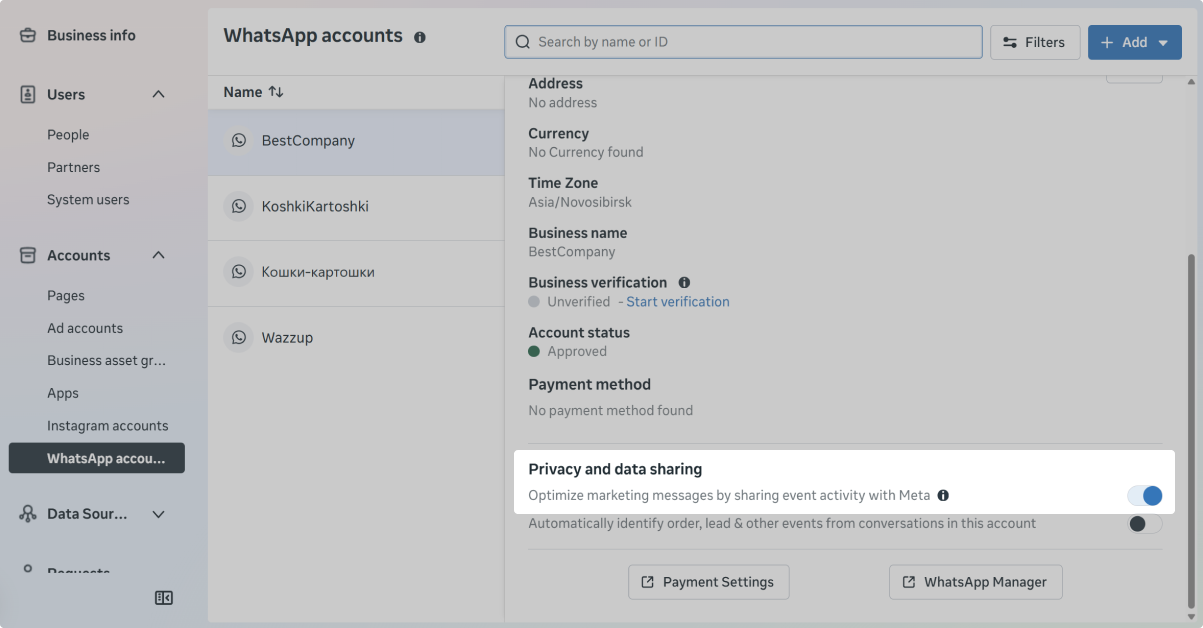
To check if MMLite is enabled, go to Meta Business Suite via the link. Log in and select the required business portfolio → a tab with WhatsApp Business accounts will open.
MMLite is active if the "Privacy and data sharing" section contains the setting "Optimize marketing messages by sharing event activity with Meta". It doesn't matter whether this setting is turned on or off.
If the setting is not present, then MMLite is not active. In that case, proceed to the section below.
How to onboard to MMLite
You need 5 minutes and a Facebook account with access to the business portfolio that your WhatsApp Business account belongs to.
1. Go to Business Suite → log in to Facebook.
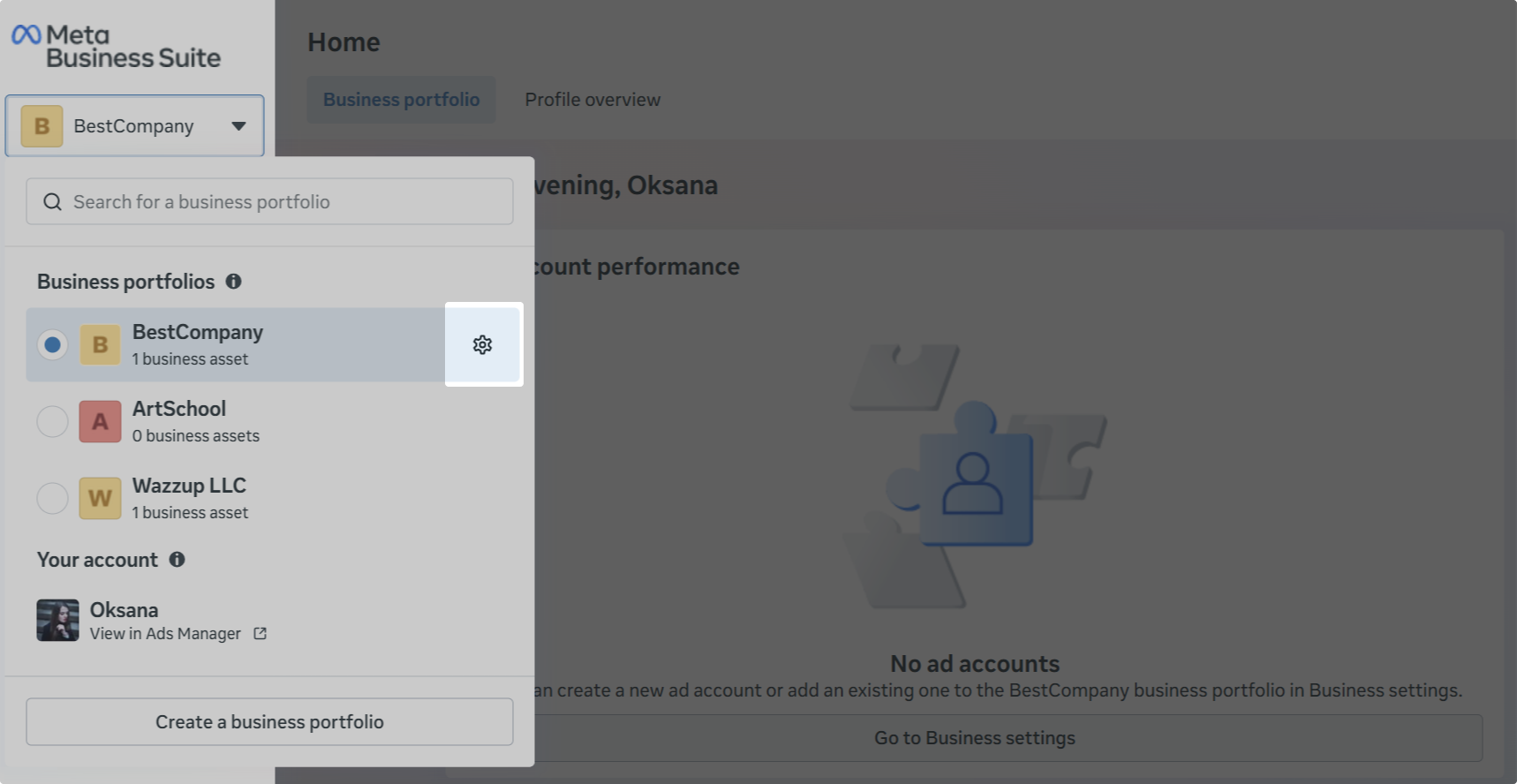
2. In the top left corner, in the dropdown list with business portfolios, click the gear icon next to the needed portfolio → the company settings will open.
3. Open "Requests" in the left menu.
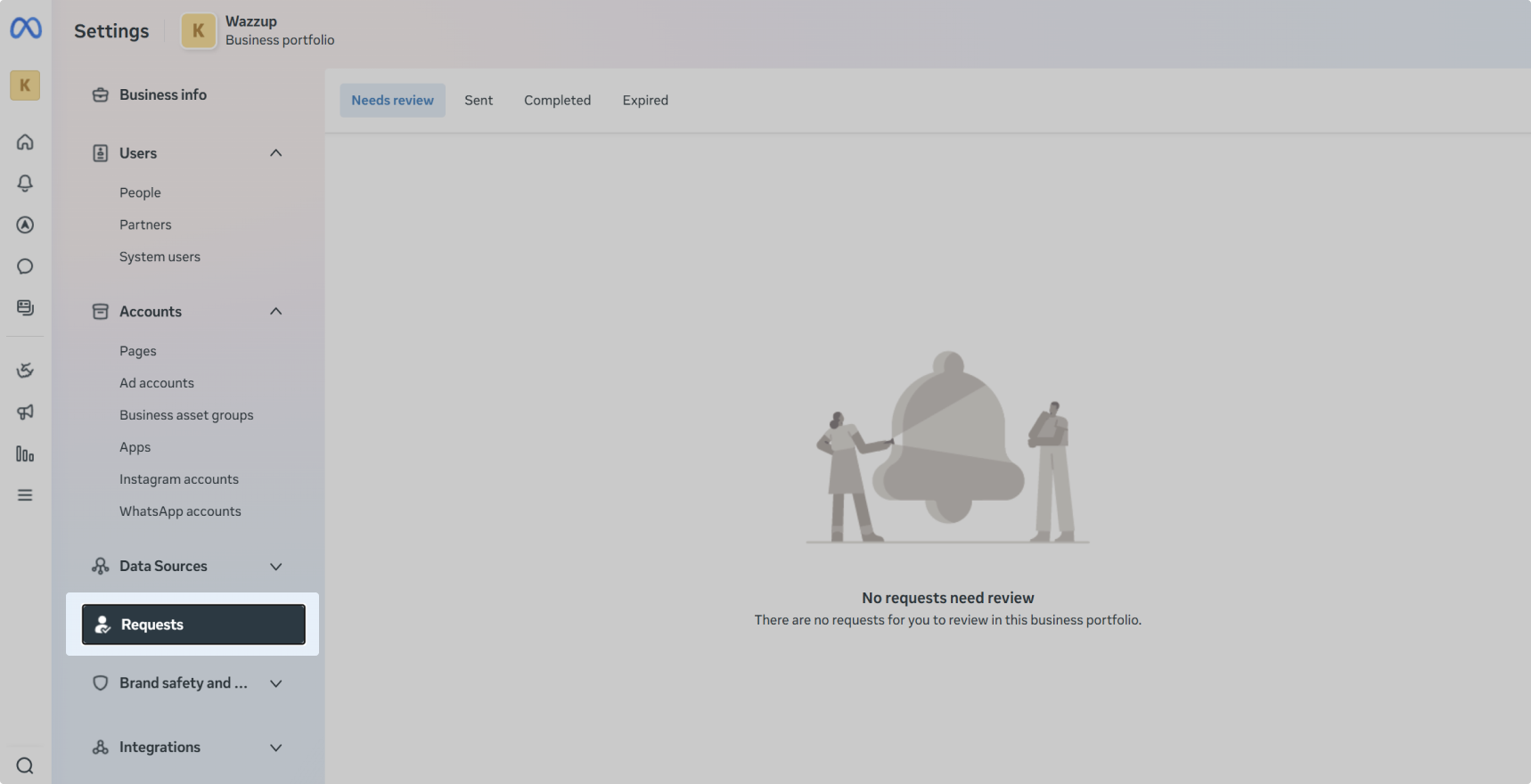
Among the requests, "Gupshup invites you to send marketing messages with optimization" should appear.
If the request is there:
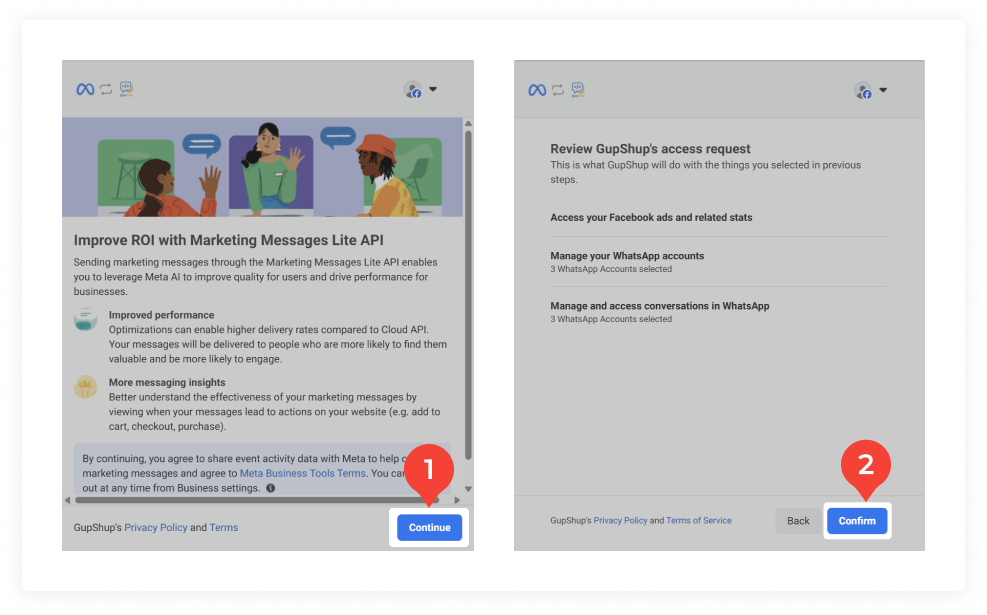
Click "View" next to the request → a new Facebook window will open.
Click "Continue" → Confirm.
Done, you are onboarded to MMLite.
If there is no request, write to our support team. They will send you a link to connect MMLite.
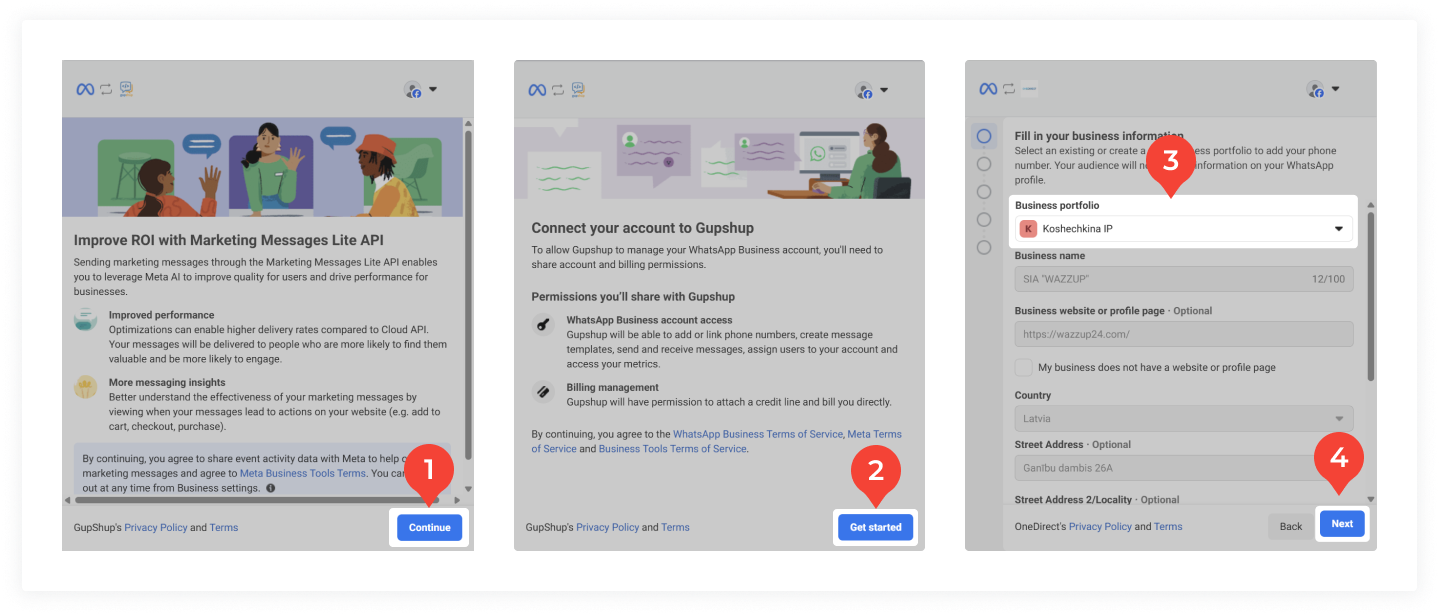
1. Follow the link and log in to Facebook → a new Meta window will open.
2. Click "Continue" → Get Started.
3. Select the business portfolio to which the needed WhatsApp Business account belongs → click "Next".
4. In the next window, click "Confirm" → wait a bit for the account connection to complete → "Finish".
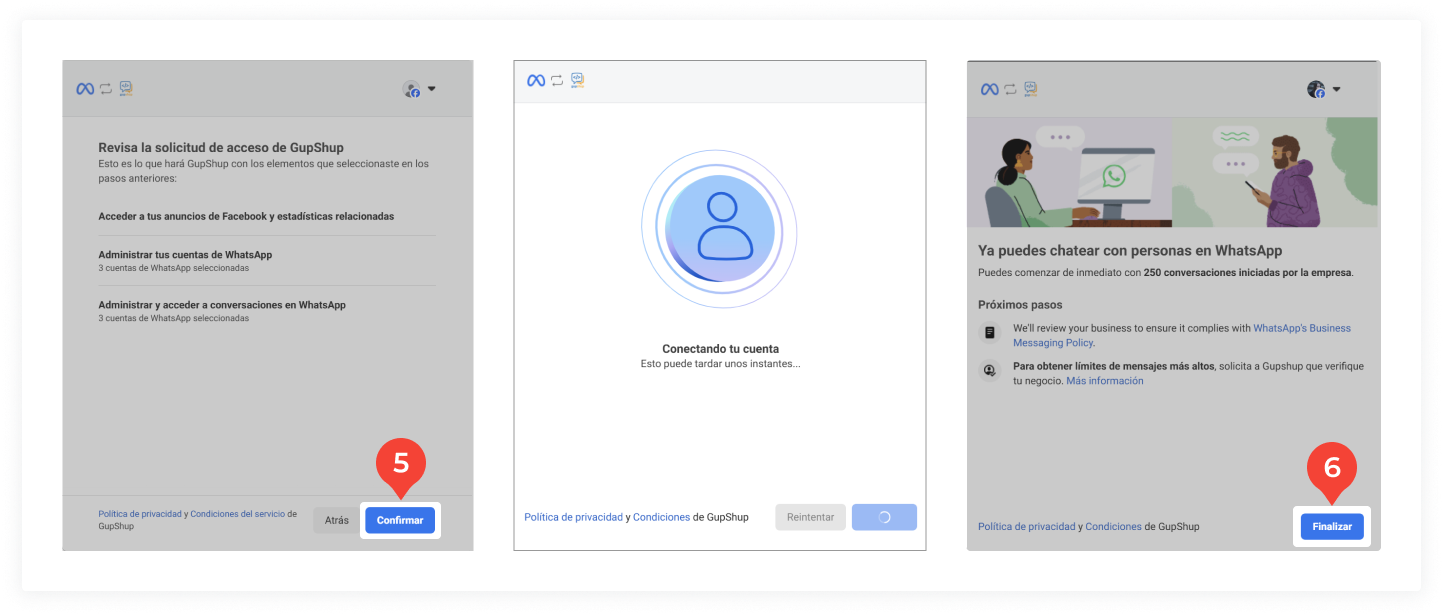
That's it, MMLite is now active on your account.
What will change after enabling MMLite
Messages will not be sent to customers who are against broadcasts.
Everything else will remain the same: nothing will change in chats, when creating templates, or when topping up your WABA balance.